
How to Manage All Your Social Media Comments From One Inbox
To manage every platform’s comments in one place, you connect your accounts to a tool like Socialic and open the Comments Manager. It pulls comments from your Facebook, Instagram, TikTok, LinkedIn, Threads, and YouTube posts into a single list. From one screen you sort them, open a post’s full thread, reply as that channel (with AI-drafted suggestions), translate comments written in other languages, post the same comment to several platforms at once, and delete spam in bulk.Done natively, this means opening six apps several times a day, remembering which posts you have already worked through, and losing replies in notification tabs. Comments have a short shelf life: a reply within the first hour of a comment does far more for reach and for the relationship than the same reply a day later. A single inbox is what makes fast, consistent replies realistic.This guide walks through the whole flow: opening the Comments Manager, syncing the latest comments, replying inside a thread, using AI suggestions, translating foreign-language comments, posting across platforms, and moderating at scale.Why a Single Comment Inbox Is Worth It
Replies are an engagement signal
On every platform, a comment thread that keeps going tells the algorithm the post is worth showing to more people. Author replies count. A post where you answer the first few comments quickly tends to outperform an identical post you left silent.Unanswered comments are lost customers
A large share of buying questions and support requests arrive as public comments, not DMs. Every one you miss is a person who asked and got nothing back, in public, where other potential customers can see it.Context switching is the real cost
The work of replying is small. The work of remembering where you were across six apps, re-finding a post, and scrolling to the newest comment is what eats the time. One list of all comments, sorted newest first, removes almost all of that overhead.Before You Start
Your accounts need to be connected. The Comments Manager only shows comments for channels you have synced. If you have not connected your accounts yet, start with how to connect your social media accounts to a scheduler.
You need published posts. Comments are attached to content that is already live. A post scheduled for next week has no comments yet.
Pinterest is not included. Pinterest does not support comments, so Pinterest posts are left out of the comment view. Everything below applies to Facebook, Instagram, Threads, LinkedIn, TikTok, and YouTube.
Step 1: Open the Comments Manager
Click Comments Manager in the left menu. You get a single table of recent comments across every connected channel, with columns for:- Comment — the text.
- Channel — which of your accounts, and which platform it came in on.
- Author — who left it.
- Commented At — when it landed.
- Actions — open the full thread, or delete the comment.
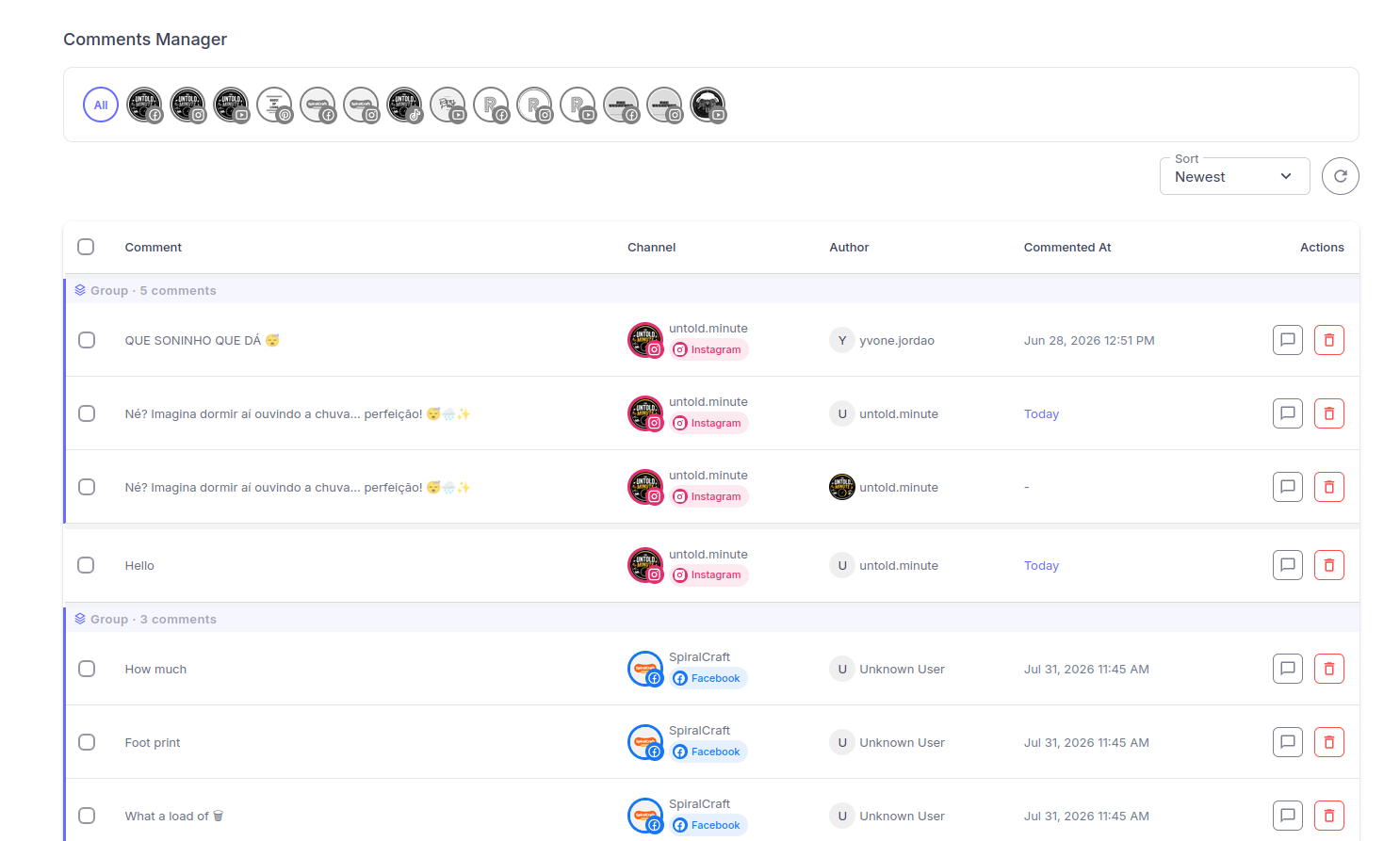
The Comments Manager: every platform’s comments in one list, grouped when a piece of content went to more than one channel.
Step 2: Sync the Latest Comments
New comments do not always reach Socialic the instant someone posts them. Some platforms push updates quickly; others are slower. So the thread view has a Sync Comments button that fetches the latest comments for that post on demand.Make syncing the first thing you do in a moderation session. Open a post, hit Sync Comments, and you are looking at a current thread instead of one that is a few hours stale. There is also a Refresh control for reloading what Socialic already has without a full re-fetch.Step 3: Open a Thread and Reply
Click Manage comments on any row to open the Manage Comments dialog for that piece of content. On the left is a preview of the post itself, so you have the context you are replying about. On the right is Comments by Channel — the full thread for each channel the content was published to.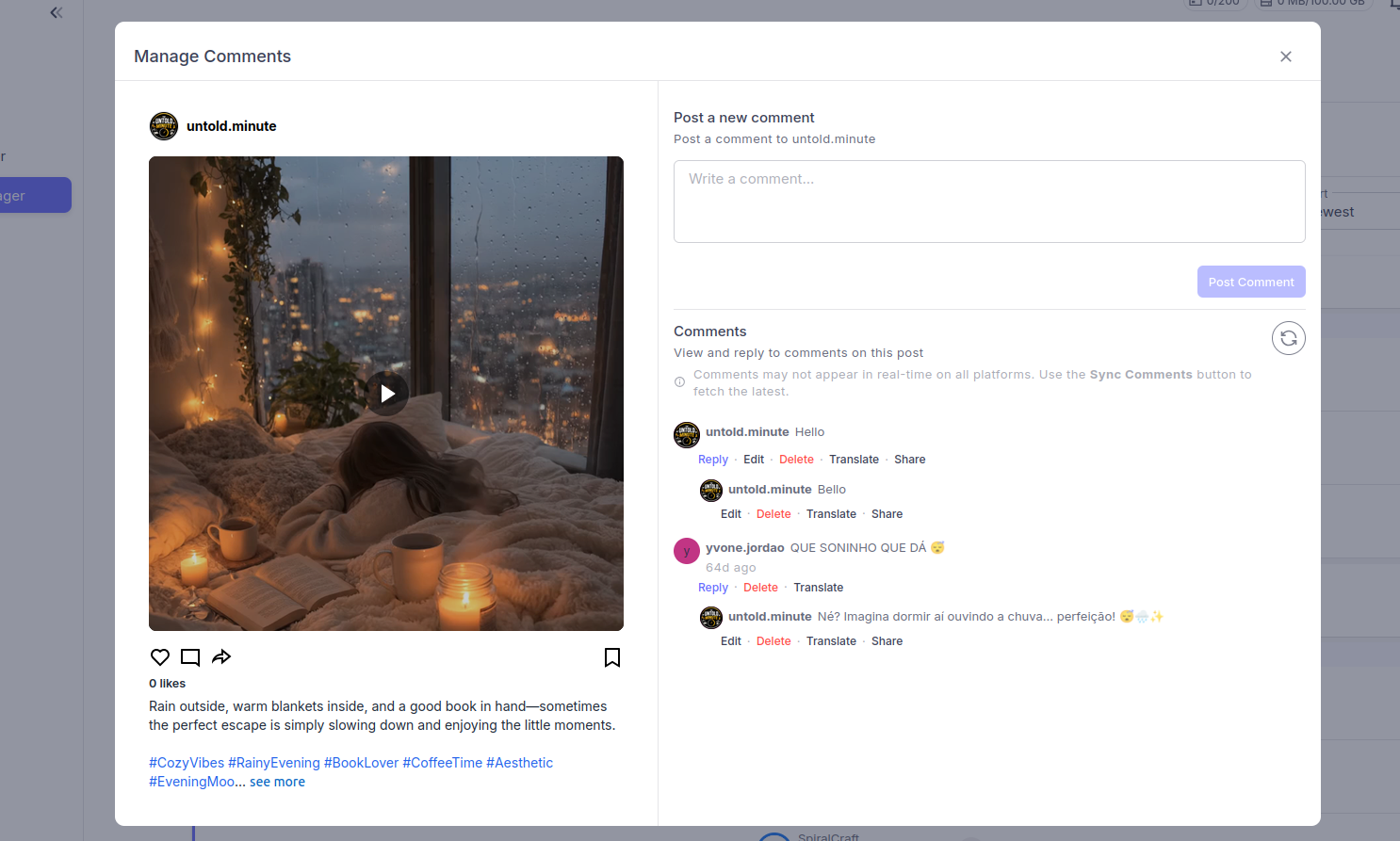
The Manage Comments dialog. The post preview sits beside the live thread, with Reply, Edit, Delete, Translate, and Share on every comment.
Each comment has Reply, Edit, Delete, Translate, and Share. Click Reply and a box appears with a Reply as {channel name} placeholder, so it is always clear which of your accounts the reply will come from. A character counter keeps you inside the platform’s limit. Your reply posts straight to the platform and nests under the original comment, and long threads collapse behind a Show More control.If a channel post has nothing yet, you see “No comments yet on this channel post.” Nothing to do there but move on.Step 4: Use the AI Reply Suggestions
Under a comment you are replying to, Socialic shows an AI Suggestions panel with a few ready-made replies. The hint says it plainly: “Click a suggestion to use it as your reply.” Hit Use and the suggestion drops into the reply box, where you can edit it before sending.Two things make the suggestions better:Post metadata. If you attached custom key-value fields to the post when you scheduled it (product name, campaign, offer details), the AI uses them to write more specific replies. This is what the Post Metadata section in the Content Creator is for.
Your edits. Always adjust the suggestion so it sounds like you. The suggestions are a fast first draft, not an auto-responder — a thread full of obviously generated replies reads worse than a slower human one.
Step 5: Translate Comments in Other Languages
If your audience is international, a chunk of your comments will not be in your language. Every comment has a Translate action with two options:- Translate to English — one click.
- Translate to another language — pick the target language from a list.
Step 6: Post One Comment to Several Platforms at Once
The Manage Comments dialog has a Post a new comment section as well as the reply threads. When a piece of content went out to more than one platform, this lets you select channels and post a comment across multiple platforms at once — useful for pinning a clarification, adding a link the caption could not hold, or kicking off discussion on a quiet post.Write the comment once, pick the channels, and hit Post Comment. Socialic tells you exactly what happened: “Comment posted to {count} post(s)” on success, or a partial result like “Posted to {success} of {total} post(s); {failed} failed” if a platform rejected it, so nothing fails silently.Step 7: Moderate at Scale
Spam and abuse do not deserve individual attention. The Comments Manager has the tools to clear them fast.Edit and delete individual comments
Inside a thread, Edit fixes a typo in one of your own replies, and Delete removes a comment. When a comment has replies, Socialic warns that deleting it removes it “and all its replies”, and every delete asks for confirmation because it cannot be undone.Bulk actions from the list
Back in the main table, select several comments and open Bulk actions. You can Post Comment to all of the selected posts at once, or Delete the selected comments together. Bulk delete shows a count and a warning that it cannot be undone before it runs.Reuse a Good Reply on Other Posts
When you write a reply that answers a question people keep asking, the Share action on that comment opens a Share Comment dialog: “Select published content to post this comment to.” Search your published posts by channel, topic, or description, tick the ones where the same answer applies, and hit Post Comments. It is the fastest way to get a canned FAQ answer onto every relevant post without retyping it.Platform Notes
Sync latency varies
The in-dialog note is honest about it: comments may not appear in real time on all platforms. Treat Sync Comments as a normal part of the workflow, not an error-recovery step.Replies come from the page or account
The reply box always shows which channel you are replying as. On a Facebook Page or a LinkedIn company page, the reply is posted as the page, not your personal profile — which is what you want for a brand.Common Mistakes to Avoid
Replying from a stale thread
If you did not sync first, you may be answering a comment that already has three newer replies, or miss a question entirely. Sync at the start of every session.Shipping AI suggestions unedited
The suggestions are a first draft. Sent as-is across a whole thread, they read like a bot and do the opposite of building a relationship. Use them to save typing, then make each one sound like a person.Deleting criticism instead of answering it
Delete spam and abuse. A real complaint answered well in public builds more trust than a clean comment section. Reserve Delete for things that add nothing.Letting comments pile up for a daily batch
A once-a-day sweep misses the reach and relationship value of an early reply. Two or three short passes through the inbox beat one long one, and one inbox is what makes short passes practical.Frequently Asked Questions
Which platforms’ comments show up in Socialic’s Comments Manager?
Facebook, Instagram, Threads, LinkedIn, TikTok, and YouTube. Pinterest is excluded because Pinterest does not support comments, so Pinterest posts are left out of the comment view.Do new comments appear instantly?
Not always. Some platforms notify Socialic quickly and others do not, so the Comments Manager has a Sync Comments button that fetches the latest for a post on demand. Sync before a moderation pass so you are working from a current thread.Can I reply to a comment in a different language?
Yes. Each comment has a Translate action — translate a single comment to English or to another language you pick. Socialic detects the original language and lets you restore the original text at any time. You write your reply in your own language.What are the AI reply suggestions?
When you open a thread, Socialic drafts a few reply options based on the post, the comment, and any metadata you attached to the post. Click one to drop it into the reply box, edit it so it sounds like you, then send. They are a starting point, not an auto-responder.Can I post the same comment to several platforms at once?
Yes. In the Manage Comments dialog you can write one comment and post it to multiple connected channels for the same piece of content in a single action. Socialic reports which platforms it posted to and flags any that failed.Final Thought
Comment management is not a growth hack, it is table stakes — but almost nobody does it well, because doing it across six apps is genuinely tedious. Pull every platform’s comments into one list, sync before each pass, reply fast with the AI draft as a head start, translate what you cannot read, and clear spam in bulk. Fifteen minutes twice a day covers it.The posts get people to your account. The replies are what turn them into an audience.One inbox. Every platform. Replies within the hour.Try Socialic free
and manage every comment from one screen.
Keep Reading
The comments start once the posts are live. See how to schedule posts to every platform at once to fill the queue, and how to connect your social media accounts to a scheduler if you have not linked your accounts yet.
Getting more from each idea also means repurposing one piece of content across 6 platforms — which gives you more posts, and more comment threads worth answering. And to see which of those posts are actually landing, read how to read your social media analytics and find your top-performing posts.