How to Connect Socialic MCP: Connector vs. MCP Server Setup
Socialic MCP connects to AI tools in one of two common shapes. As a Connector — a settings-screen integration with login built in, the way claude.ai’s Connectors work — you paste a URL and it handles the rest. As an MCP server — the way coding-agent tools like Claude Code and Codex work — you register the server yourself, usually with a command, and then authorize it as a separate step.
This guide covers both, using claude.ai as the Connector example and Claude Code as the MCP server example — the same shapes apply to other MCP-compatible clients. If you haven’t read what Socialic MCP is yet, that’s worth a quick read first — this one is just the setup steps.
Before You Start
A Socialic account with at least one channel connected. MCP schedules to channels you’ve already synced. If you haven’t connected any yet, do that first — see how to connect your social accounts to a scheduler.
An AI tool that speaks MCP. Either one with a Connectors / Integrations settings screen (claude.ai and similar apps), or a coding-agent CLI where you register MCP servers yourself (Claude Code, Codex, and similar tools).
A browser session logged into the right Socialic account. The authorize step opens Socialic’s login screen; make sure that’s the account you want scheduling on your behalf.
Option A: As a Connector (claude.ai and similar apps)
Use this URL for Connector-style setups:
https://mcp.socialic.app/mcpStep 1: Add the connector
On claude.ai, open Settings → Connectors, click Add custom connector, and paste in the URL above.
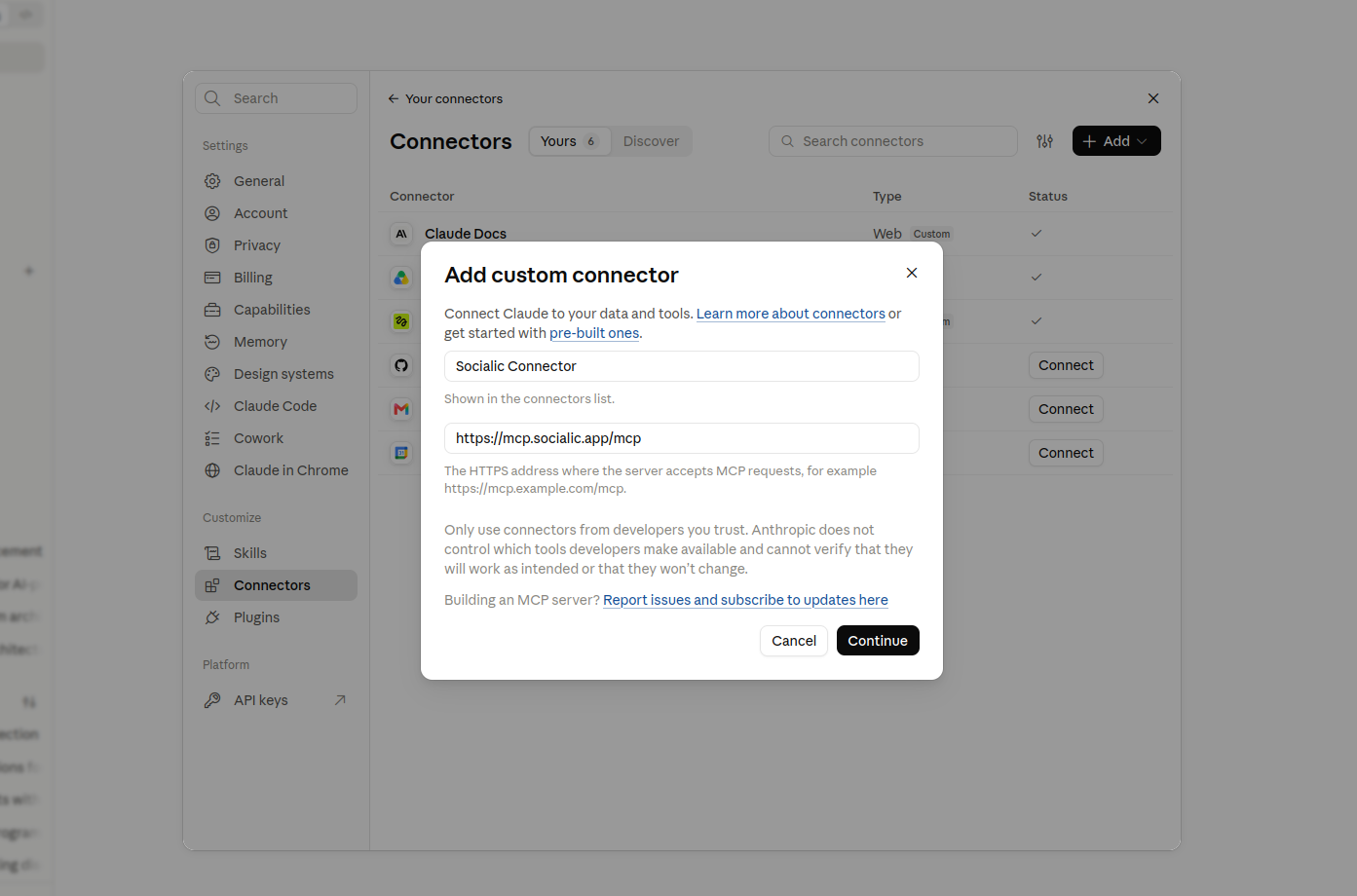
Settings → Connectors → Add custom connector: name it, paste the URL, and continue.
Step 2: Sign in
Once added, the connector shows as not yet connected — click Connect.
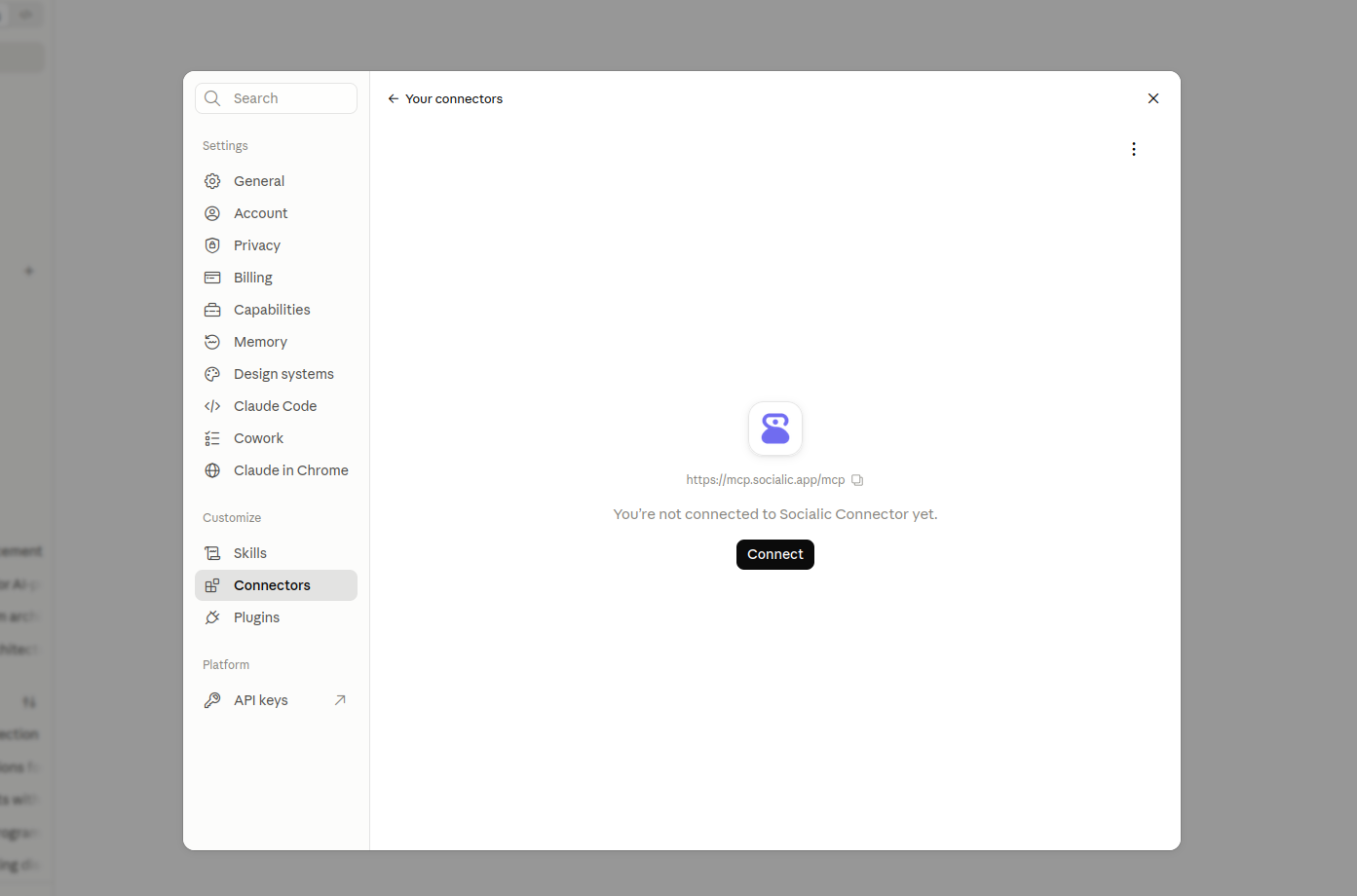
Added but not yet connected — click Connect to start the login.
This redirects to Socialic’s own domain, not a screen inside Claude — you’ll either see a login form or, if you’re already signed in to Socialic in that browser, go straight to an authorization screen like the one below. Either way, confirm it’s the Socialic account whose channels you want to reach, and approve. It redirects back once you’re done, and the token is picked up and stored automatically. Your Socialic password never passes through Claude at any point.
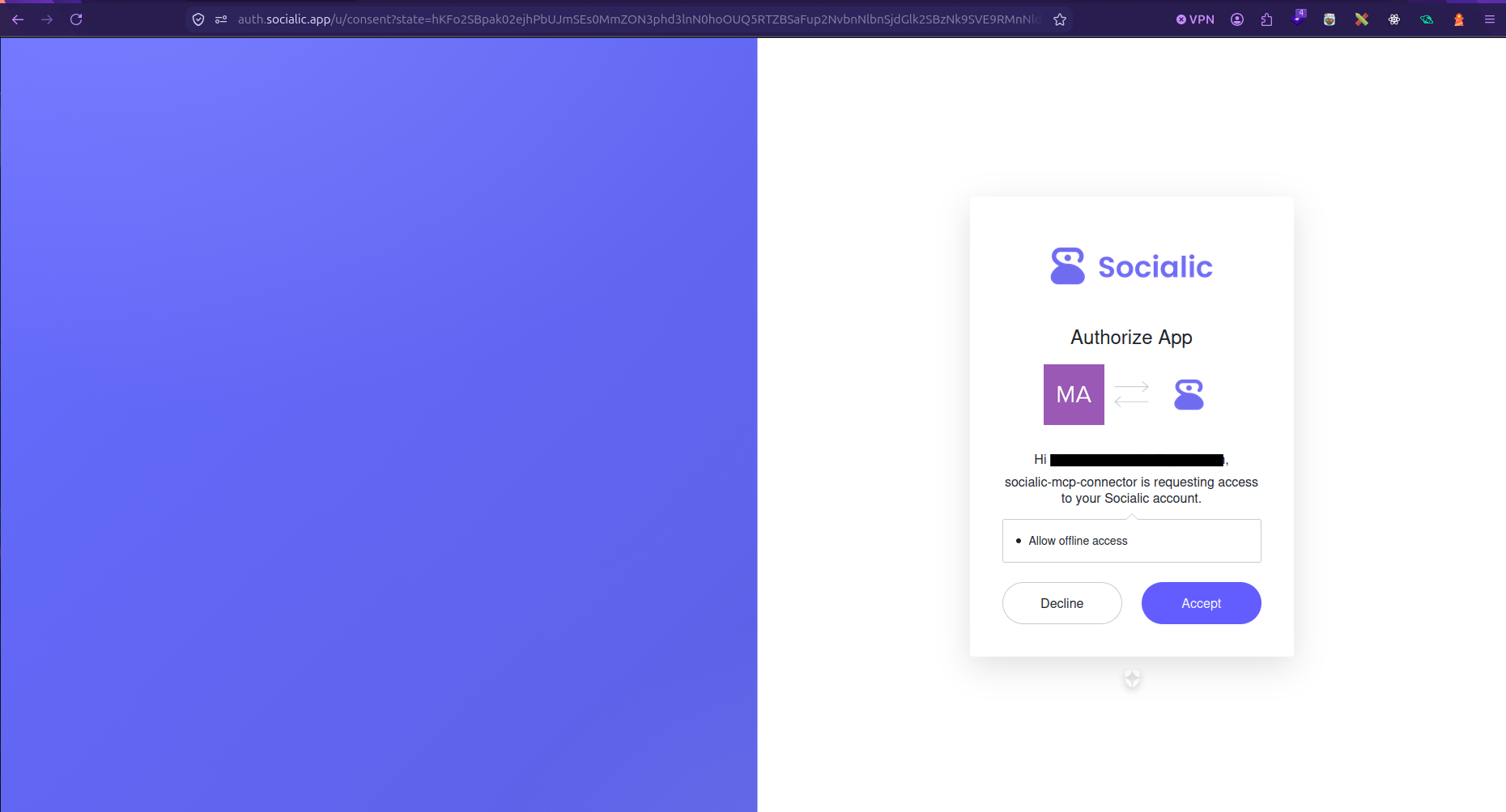
Socialic’s own authorization screen (on auth.socialic.app) — not part of Claude’s interface.
Step 3: Set tool permissions
Once authorized, the connector’s settings page shows six tools split into two groups, each with its own permission — Always allow, Ask each time, or Never:
- Read-only tools (5): list a channel’s posting timeslots, list Socialic channels, list Socialic media library files, list Socialic scheduled posts, list timezones.
- Write/delete tools (1): schedule a Socialic post.
A common setup: leave the read-only tools on Always allow — there’s nothing to approve for just looking things up — and set scheduling to Ask each time, so nothing publishes without an explicit confirmation.
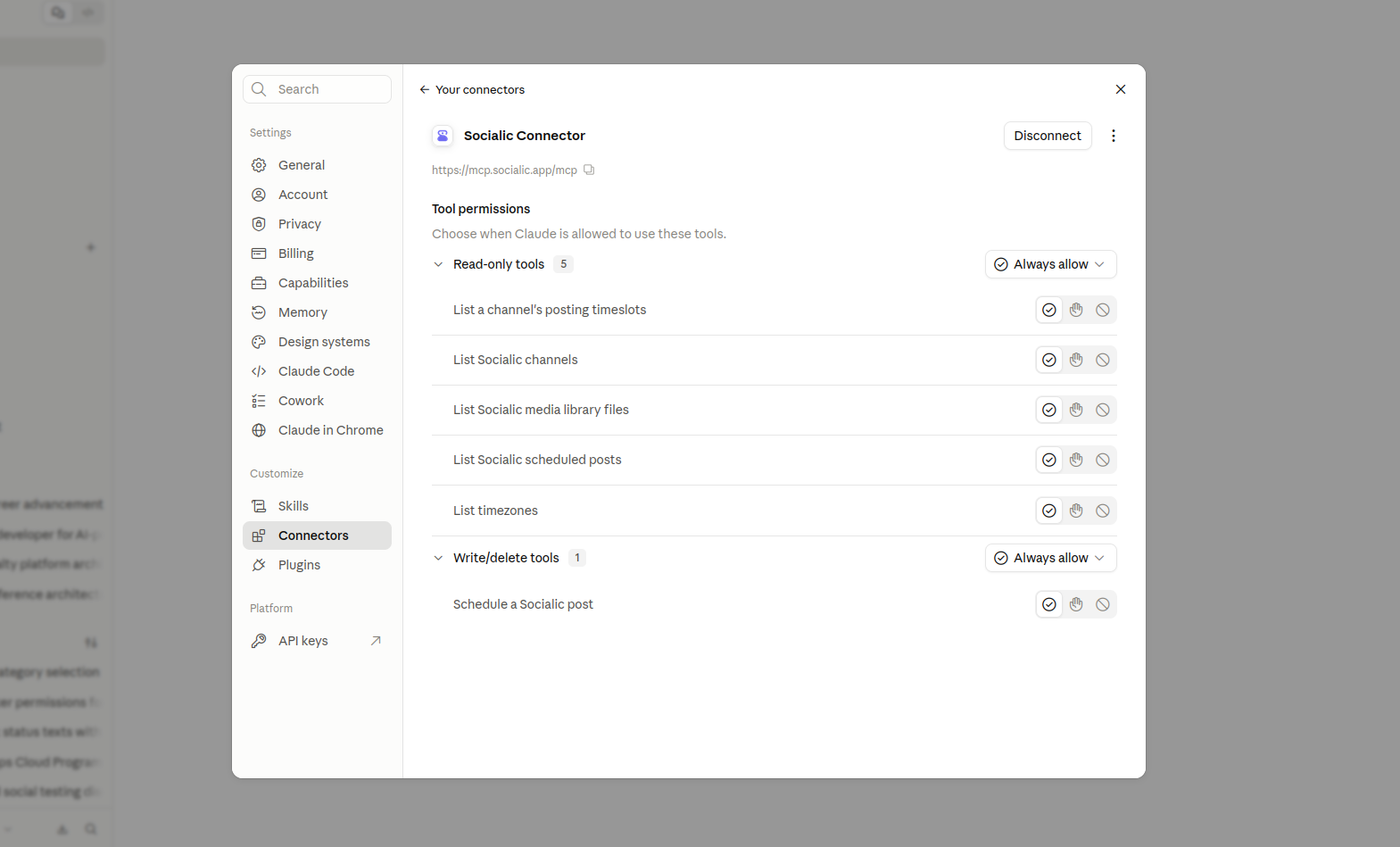
Connected. Each tool gets its own Always allow / Ask each time / Never permission.
Option B: As an MCP Server (Claude Code, Codex, and similar CLIs)
Use this URL for MCP-server-style setups — no /mcp path:
https://mcp.socialic.appStep 1: Register the server
In Claude Code, run:claude mcp add socialic --transport http https://mcp.socialic.appOther coding-agent CLIs, like Codex, use their own equivalent command for adding a Streamable HTTP MCP server — check that tool’s docs for the exact syntax, and point it at the same URL.
This step doesn’t log you in by itself — it just registers Socialic MCP as available. Authorizing it, next, is what actually connects your account.
Step 2: Authenticate it
Run /mcp to open the MCP server list. Socialic shows up under Local MCPs — separately from any Connectors already synced in from your claude.ai account, which appear further down under their own claude.ai heading. If you’ve also added Socialic as a Connector on claude.ai, you’ll see it listed twice: once here as your local server, once under claude.ai. They’re independent connections.
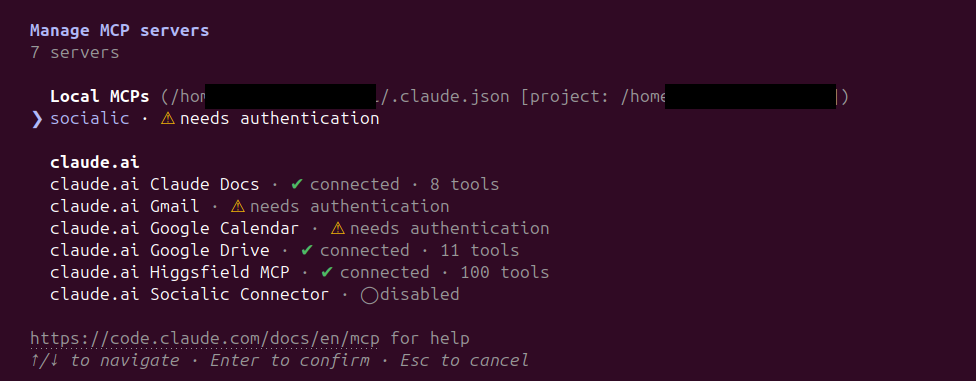
socialic under Local MCPs is the server you just registered — separate from any claude.ai Connectors listed below it.
Select socialic from the list to see its detail screen:
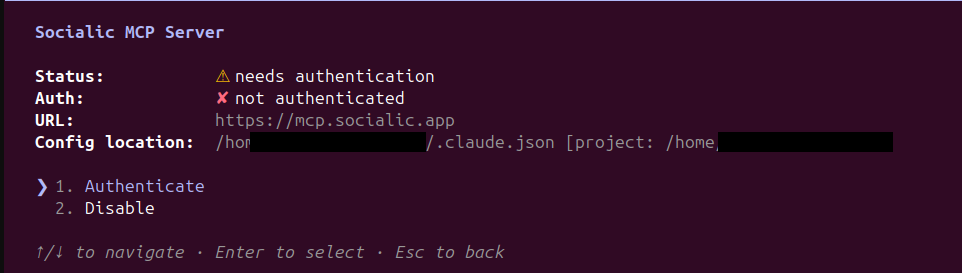
Choose Authenticate.
This opens a login URL in your browser automatically. If the browser doesn’t open on its own (for example over SSH), the URL is printed so you can copy and open it yourself — and if the redirect afterward shows a connection error instead of completing, Claude Code also lets you paste the URL from your browser’s address bar back in to finish manually.
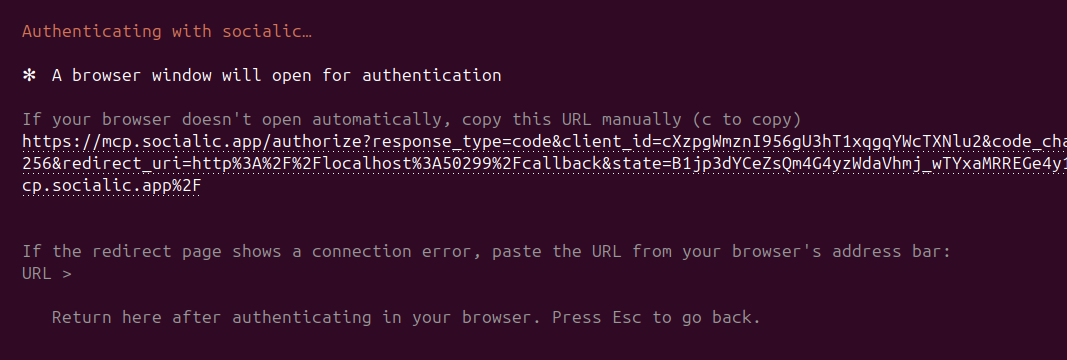
The printed URL and the paste-back fallback both exist for cases where the automatic browser redirect can’t complete on its own.
The page that opens is Socialic’s own login screen — not a screen inside Claude. Sign in with the Socialic account whose channels you want to reach, and submit. It redirects back to Claude Code; the token is picked up from that redirect automatically, stored, and sent with every request from then on. Your Socialic password never passes through Claude at any point.
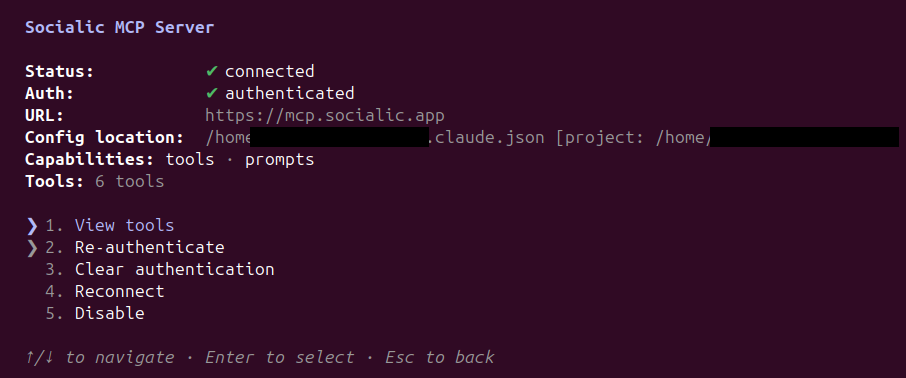
Connected and authenticated, with all 6 tools available.
From here you can select View tools to see them listed directly in Claude Code, without needing to ask in a conversation first:
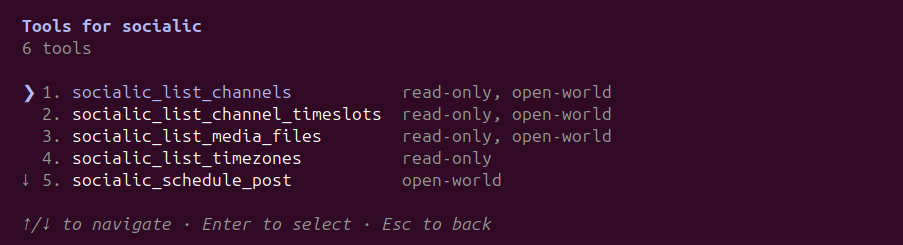
The tool list scrolls — socialic_list_scheduled_posts is the 6th, just below what’s visible here.
Confirm the Connection Works
Whichever path you used, start a new conversation and ask something simple:
- “List my Socialic channels."
- "What channels do I have connected in Socialic?”
If the connection worked, it calls the socialic_list_channels tool and comes back with your connected platforms, their status, and what each one requires before you can post. If it responds that it has no access to Socialic, or can’t find the tool, go back and confirm the connector or server was added correctly.
Try a Prompt Shortcut
Socialic MCP also registers four prompt shortcuts alongside its tools — workflow starters that surface directly in clients that support them, for example as a slash-command or ”+” menu:
- socialic_channels — lists your channels and spells out every option available for each one.
- socialic_draft_post — walks through listing channels, drafting copy, confirming required fields, and scheduling, in one flow.
- socialic_timezones — looks up a timezone by name.
- socialic_scheduled — shows your scheduled and published posts as a table.
If your client shows a shortcut menu, look for these by name. Otherwise, just describing what you want in plain language works the same way — the shortcuts are a convenience, not a requirement.
Troubleshooting
The browser window never opens, or authorization stalls
Check that your browser isn’t blocking the pop-up, and that you’re not already stuck on a Socialic login screen in another tab from a previous attempt. If the browser genuinely won’t open, use the printed login URL instead — Claude Code prints one alongside the Authenticate action, and also lets you paste back the URL from your browser’s address bar if the redirect shows a connection error. Closing stray tabs and retrying usually resolves it.A channel isn’t available
MCP only sees channels already connected in your Socialic account. If a platform is missing, connect it on the Sync page first — see how to connect your social accounts to a scheduler — then ask it to list channels again.It stopped working after a while
Access tokens are refreshed automatically, but a revoked session or a password change on your Socialic account can invalidate one early. If it reports a lost connection, authorize the socialic connector or server again.A media attachment fails
The hosted server can’t reach files on your computer. Upload the image or video to Socialic’s media library first, or give it a public https link, rather than a local file path.On claude.ai, it keeps asking to confirm every lookup, not just scheduling
Check the connector’s tool permissions — the read-only tools may be set to “Ask each time” instead of “Always allow.”Frequently Asked Questions
What do I need before connecting Socialic MCP?
A Socialic account with at least one social channel already connected, and an AI tool that supports MCP — either as a Connector (like claude.ai) or as an MCP server you register yourself (like Claude Code or Codex). The connection reaches your existing channels — it doesn’t connect new ones by itself.Is the URL the same for both setup methods?
Not quite. As a Connector (claude.ai and similar apps), use https://mcp.socialic.app/mcp. As an MCP server (Claude Code, Codex, and similar CLIs), use https://mcp.socialic.app without the /mcp. Both point at the same server; it’s just what each surface expects.Do I need to generate an API key?
No, either way. Socialic MCP uses OAuth. A Connector logs you in automatically as part of adding it. An MCP server needs a separate authorize step you trigger yourself, but it’s still a browser login, not a key you copy and paste.Can I control which actions are allowed to run automatically?
Yes, when added as a Connector — each of the six tools gets its own permission (Always allow, Ask each time, or Never), split into five read-only tools and one that schedules posts. As an MCP server, your client typically asks for confirmation inline instead of offering a settings screen.Can I attach a file straight from my computer?
Not directly — the hosted server has no access to your computer’s filesystem. Give it an https link, or upload the file to Socialic’s media library first and reference it by name; either way it attaches the same way the dashboard does it.How do I know the connection actually worked?
Ask it something simple like “list my Socialic channels.” If it responds with your connected platforms and their status, the connection is live. If it says it has no access, go back and authorize it again.What happens if my access token expires?
It’s refreshed automatically in the background. If something does go wrong — a revoked session, a password change on your Socialic account — authorizing it again gets you a fresh token.Final Thought
Same server, two doors in. If you’d rather not touch a terminal, the Connector path (claude.ai and similar apps) gets you the whole thing from a browser, including per-tool permission controls. If you’re already living in a coding-agent CLI, the MCP server path takes one command plus an authorize step. Either way, once it’s connected, it stays connected until you remove it or revoke access.
Don’t have a Socialic account yet? Start free
and connect a channel before you connect an AI tool to it.
Keep Reading
New to Socialic MCP? What is Socialic MCP? covers what it does, the tools it registers, and why you’d use it before you set it up.
Once it’s connected, see every capability, with sample prompts and responses to know what to ask for, or go straight to scheduling a Meta post or scheduling to YouTube, TikTok, Pinterest, and LinkedIn with Socialic MCP.
Prefer the dashboard? How to schedule posts to every platform at once covers the same outcome through Socialic’s Content Creator, for comparison.